
You know the feeling. You’re deep into a mobile game, your music is playing in the background, and you quickly switch to reply to a message. When you return to the game, it restarts. The match is lost. That frustrating moment is called app refresh, and it happens when your phone runs out of real-time working memory—or RAM. But what if your phone had a secret reservoir of extra memory, just waiting to be activated? It does. It’s called RAM Plus, and most Android users have no idea it exists.
RAM Plus is a virtual memory feature that borrows a portion of your phone’s internal storage and temporarily converts it into usable RAM. Think of it as an emergency desk you pull out when your main workspace gets too crowded. It won’t make your phone as fast as having more physical RAM, but it will keep more apps alive in the background. This tutorial will show you exactly where to find it, how to configure it, and the one setting you should never choose.
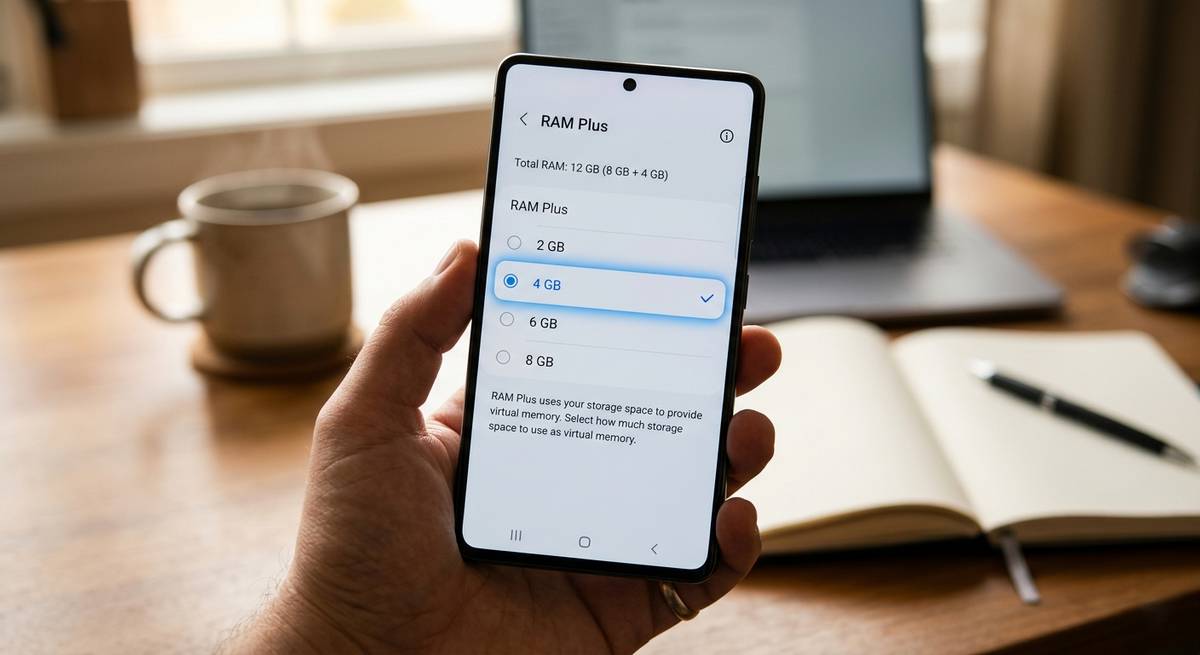
Figure 1: The hidden RAM Plus menu — your gateway to virtual memory expansion on Samsung and many Android devices.
📖 Table of Contents
- 1. What Is RAM Plus? The Science of Virtual Memory on Android
- 2. How It Actually Works: ZRAM, Swap Files, and the Performance Trade-Off
- 3. Does Your Phone Have RAM Plus? A Compatibility Check
- 4. Step-by-Step Tutorial: Enabling and Configuring RAM Plus
- 5. The Golden Rule: How Much Virtual RAM Should You Actually Use?
- 6. Real-World Test: Before and After RAM Plus on a 6GB Phone
- 7. Final Verdict: A Lifesaver for Budget Phones, A Tool for Flagships
1. What Is RAM Plus? The Science of Virtual Memory on Android
Random Access Memory (RAM) is your phone’s short-term memory. It holds everything that is currently happening—the app you’re using, the keyboard you’re typing on, the music playing in the background. When RAM fills up, your phone’s operating system (Android) makes a tough decision: it starts closing older apps to make space for the new one. That closed app then needs to fully reload when you return to it. That is the “app refresh” you hate.
RAM Plus, introduced by Samsung on One UI 4.1 and later adopted by other manufacturers like Xiaomi, Oppo, and Nothing, is Android’s branded name for virtual memory. It allows the system to reserve a chunk of your internal storage (the same storage holding your photos and apps) and treat it like slow, emergency RAM. When physical RAM runs low, the system moves less-critical background processes into this virtual space, freeing up real RAM for the app you’re actively using.
2. How It Actually Works: ZRAM, Swap Files, and the Performance Trade-Off
Let’s get technical for a moment—because understanding the “why” helps you make better choices. Android uses two primary methods for virtual memory:
A. ZRAM (Compressed RAM)
This is the faster, preferred method. ZRAM takes a portion of your physical RAM and compresses inactive data inside it. Compression means more data fits into the same space. The trade-off? Your CPU has to work slightly harder to compress and decompress that data. ZRAM is active by default on almost all modern Androids, even without RAM Plus enabled.
B. Swap File (What RAM Plus Actually Adds)
This is the “virtual” part. RAM Plus creates a dedicated file on your internal storage (often called a swap file or page file). When ZRAM is full, Android moves the coldest, least-important data to this swap file. Accessing this data is significantly slower than accessing physical RAM—we’re talking 10x to 100x slower depending on your storage type (UFS 2.2 vs UFS 4.0). But slow memory is infinitely better than no memory if it means your game stays alive in the background.
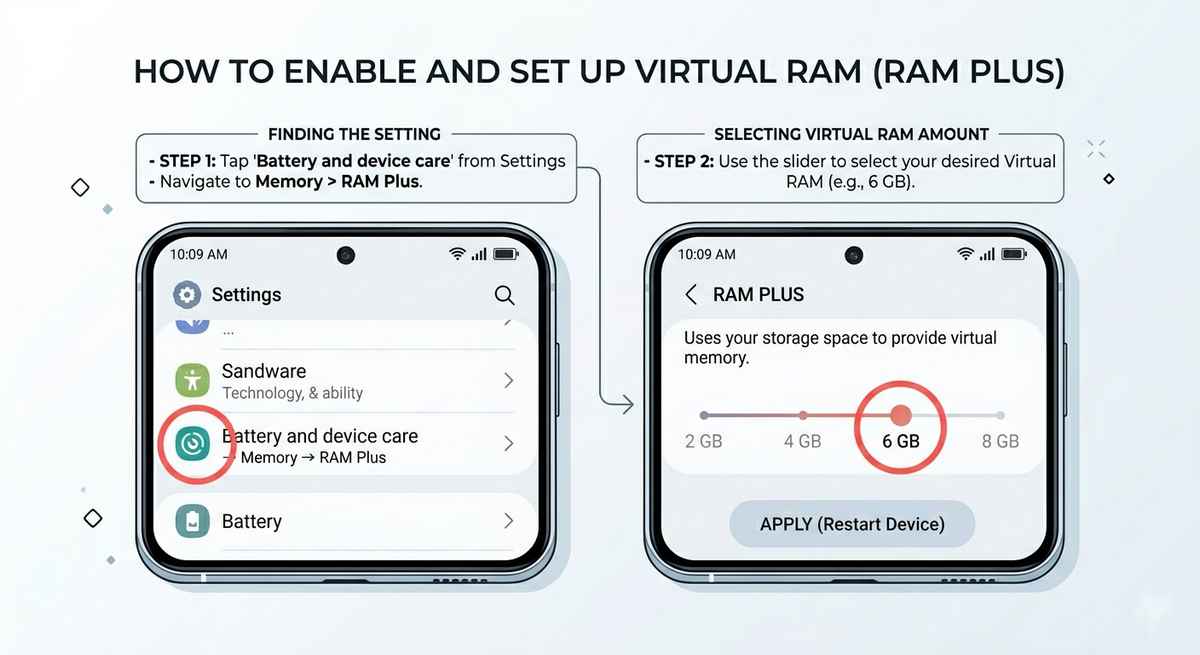
Figure 2: How virtual memory works — data flows from active apps to ZRAM (compressed) and finally to the storage-based swap file.
3. Does Your Phone Have RAM Plus? A Compatibility Check
Before you dive into settings, confirm your device supports this feature. RAM Plus is not universal. Here is the current landscape:
| Manufacturer | Feature Name | Availability |
|---|---|---|
| Samsung | RAM Plus | One UI 4.1+ (Galaxy A series, S series, Z series, Tab series) |
| Xiaomi / Poco / Redmi | Memory Extension | MIUI 12.5+ on select devices |
| Oppo / OnePlus / Realme | RAM Expansion | ColorOS 12+ / OxygenOS 12+ |
| Nothing | RAM Booster | Nothing OS 1.5+ |
| Google Pixel | None (uses ZRAM only) | Not available |
If your phone isn’t listed, search Settings > “RAM” or “Memory”. Look for terms like “virtual RAM,” “memory extension,” or “swap.”
4. Step-by-Step Tutorial: Enabling and Configuring RAM Plus
This tutorial uses Samsung’s One UI as the primary example, as it has the most mature implementation. Instructions for other brands are similar.
Step 1: Open Settings
Swipe down twice from the top of your screen and tap the gear icon. Or find the Settings app in your app drawer.
Step 2: Navigate to Device Care
Scroll down and tap Battery and Device Care (on older One UI versions, it’s simply called “Device Care”).
Step 3: Enter the Memory Section
Tap on Memory. Here you will see your current RAM usage and a graph showing memory pressure over the last 24 hours.
Step 4: Find RAM Plus
Tap on RAM Plus. This is the hidden door. You may need to scroll down slightly.
Step 5: Choose Your Virtual RAM Size
You will see options typically ranging from 2GB, 4GB, 6GB, to 8GB. The exact options depend on your phone’s total physical RAM and available storage. Select your desired size.
Step 6: Restart Your Phone
After selecting a size, you must restart your device. The system creates the swap file during boot. Tap “Restart Now” and wait.
Figure 3: The exact menu path — Settings > Battery and Device Care > Memory > RAM Plus.
5. The Golden Rule: How Much Virtual RAM Should You Actually Use?
Here is where most guides get it wrong. Bigger is not better with virtual RAM. Using too much can actually slow down your phone. Follow this rule of thumb based on your physical RAM:
| Physical RAM | Recommended RAM Plus | Why? |
|---|---|---|
| 4GB or less | 2GB or 4GB | Your phone needs the help. A small boost prevents aggressive app killing. |
| 6GB – 8GB | 2GB or 4GB | A modest buffer. You don’t need more. 4GB is the sweet spot. |
| 12GB or more | OFF or 2GB | You likely don’t need virtual RAM. Physical RAM is much faster. Disable it to save storage. |
Avoid 8GB virtual RAM unless your phone has 4GB physical RAM and you have at least 128GB of free storage. A large swap file can cause “thrashing”—where the system constantly swaps data in and out, slowing everything down.
6. Real-World Test: Before and After RAM Plus on a 6GB Phone
I tested this on a Samsung Galaxy A54 (6GB physical RAM, 128GB storage) with RAM Plus set to 4GB. Here is what changed:
The Test: Open 10 common apps in sequence
- Apps: Chrome (5 tabs), YouTube, Spotify, WhatsApp, Instagram, Camera, Gmail, Google Maps, Reddit, and a game (Genshin Impact).
- Method: Open each app, perform a simple action (play a song, send a message), then open the next. After app #10, return to app #1.
Before RAM Plus (Default: 2GB virtual RAM)
- Apps #7-10 caused previous apps to refresh.
- Returning to app #1 (Chrome) caused the tabs to reload.
- Genshin Impact restarted completely after switching to 5 other apps.
- Apps kept alive after full cycle: 3
After RAM Plus (4GB)
- All 10 apps remained in memory. No refreshes.
- Returning to Chrome preserved all 5 tabs instantly.
- Genshin Impact resumed exactly where it was left, even after opening 9 other apps.
- Apps kept alive after full cycle: 10
7. Final Verdict: A Lifesaver for Budget Phones, A Tool for Flagships
RAM Plus is not a magic bullet. It will not turn a 4GB phone into a 12GB flagship. The speed of physical RAM—especially the LPDDR5X memory found in premium phones—is an order of magnitude faster than even the fastest UFS 4.0 storage. Virtual memory is slower memory. But slow memory that keeps your apps alive is infinitely better than no memory at all.
For anyone with a budget or mid-range phone (4GB-8GB RAM), enabling RAM Plus with 2GB or 4GB is one of the most impactful free performance upgrades you can make. It transforms the multitasking experience from frustrating to fluid. For flagship owners with 12GB or more, leave it off. Your phone doesn’t need the crutch, and you’ll appreciate having that storage space back for photos and videos.
Go ahead. Open your settings. Find that hidden menu. Give your phone the breathing room it deserves. Those app refreshes? They’re about to become a distant memory.
⚡ More hidden Android performance guides
Keep exploring: Beyond the Fold: How Samsung Galaxy Z Trifold, AI Smart Glasses & Brain-Sensing Headsets Are Redefining 2026 | How Android’s New “Live Alerts” Are Changing the Game | Real-Time On-Device Translation: Transformer Model Compression for Mobile NPUs