
There is a particular frustration that comes from juggling apps on a smartphone. You are watching a YouTube tutorial, but you also need to take notes. You are on a WhatsApp call, but you need to check your calendar. So you switch. Then you switch back. Then you lose your place. This dance of context-switching is the hidden tax of modern phone use. But Android has a secret. Buried deep in the operating system, ignored by almost every manufacturer, lies a feature called freeform window mode. It turns any app into a floating, resizable bubble that lives on top of other apps—like a tiny, private desktop on your phone.
This is not split-screen. Split-screen forces you to sacrifice half your display. This is overlay multitasking. Imagine dragging a YouTube video into a corner while you reply to emails. Imagine keeping your calculator floating over a banking app. Samsung calls this “Pop-up View” on their Galaxy devices, but they hide it behind a clunky edge panel. Pixel users don’t have it at all. Xiaomi calls it “Floating Windows” but restricts it to a handful of apps. The truth is that every Android phone running Android 13 or newer has this feature built into the core system. Google just didn’t bother to turn it on. Today, you will.
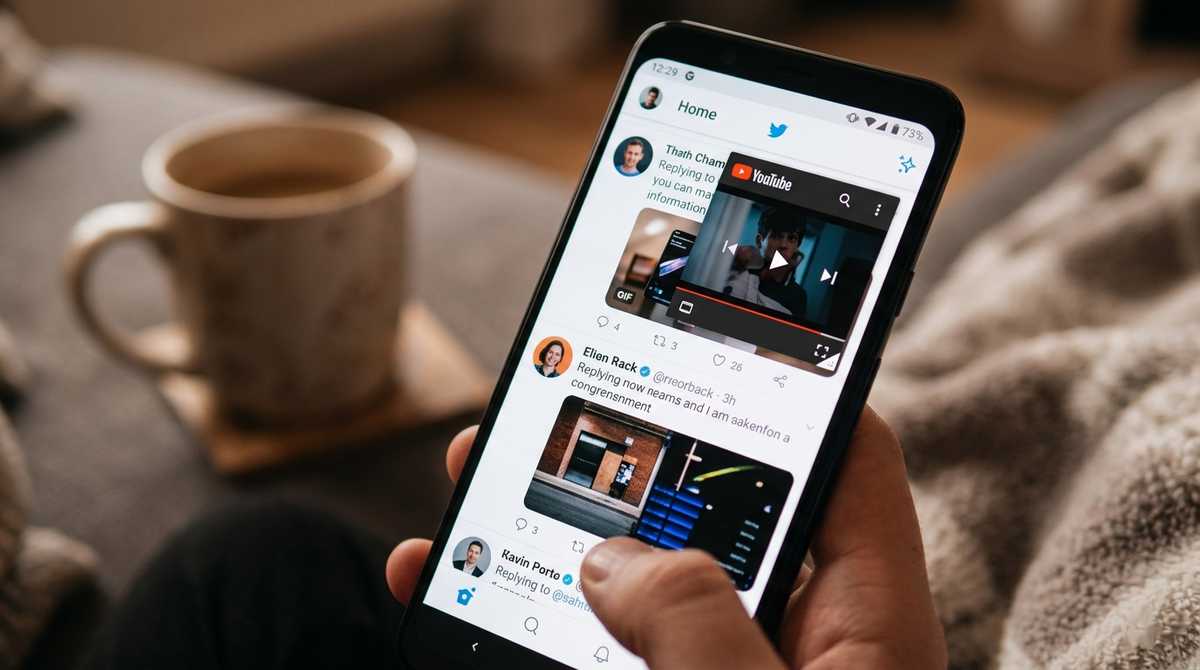
Figure 1: A floating YouTube window hovering over Twitter—true multitasking without leaving your current app.
📖 Table of Contents
- 1. What Is Freeform Window Mode? The Android Feature Google Forgot
- 2. Floating Windows vs. Split-Screen vs. Bubbles: A Clear Comparison
- 3. Does Your Phone Support It? A Compatibility Check by Brand
- 4. Step-by-Step Tutorial: Enabling Freeform Mode on Any Android
- 5. How to Actually Launch a Floating Window (Three Methods)
- 6. Pro Tips: Resizing, Minimizing, and Managing Multiple Windows
- 7. The Apps That Shine in Floating Mode (And One That Doesn’t)
1. What Is Freeform Window Mode? The Android Feature Google Forgot
Android has contained a hidden multitasking system since Android 7.0 Nougat (2016). It is called freeform window mode. Google built it for desktop-style Android environments (like the ones you see on Chrome OS tablets or large-screen foldables), but they never enabled it for phones. The code is there. The APIs are there. The toggle is simply turned off by default.
When you enable freeform mode, Android stops forcing every app to fill the entire screen. Instead, apps become resizable windows with title bars, close buttons, and the ability to float on top of other apps. You can drag them anywhere on the screen. You can resize them by pulling the corners. You can minimize them into a small bubble that sits quietly in the corner until you need it again. It is desktop multitasking on a phone—and Google has been hiding it from you for nearly a decade.
2. Floating Windows vs. Split-Screen vs. Bubbles: A Clear Comparison
Android already has several multitasking features. Here is how freeform mode is different—and better.
| Feature | How It Works | The Problem |
|---|---|---|
| Split-Screen | Two apps side by side, each taking half the screen | Loses 50% of your screen real estate. Can’t overlay. |
| Chat Bubbles (Android 11+) | Small circular bubbles for messaging apps only | Restricted to conversations. Apps must opt in. Not resizable. |
| Picture-in-Picture (PiP) | Floating video window for streaming apps | Video only. Limited controls. One app at a time. |
| Freeform Window | Any app, any size, anywhere. Resizable. Minimizable. Multiple windows. | Hidden by default. Requires one-time setup. |
3. Does Your Phone Support It? A Compatibility Check by Brand
Because freeform mode is part of the core Android operating system, every phone running Android 13, 14, or 15 has the code. However, manufacturers sometimes block the Developer Options toggle that enables it. Here is the reality by brand:
- Samsung (One UI 5.0+): ✅ Fully supported. The Developer Options toggle works perfectly. Samsung also has a native “Pop-up View” feature, but freeform mode gives you more control.
- Google Pixel (Android 13+): ✅ Fully supported. The toggle is present and functional. This is the best implementation because Pixel runs stock Android.
- Xiaomi / Poco / Redmi (MIUI 14+ / HyperOS): ⚠️ Partially supported. The toggle exists but Xiaomi’s aggressive memory management may close floating windows in the background. Still works, but less reliable.
- OnePlus / Oppo (OxygenOS 13+ / ColorOS 13+): ✅ Fully supported. OnePlus includes a native “Floating Window” feature in their gesture menu, but freeform mode works as well.
- Nothing (Nothing OS 2.0+): ✅ Fully supported. Nothing OS is close to stock Android, so the toggle works perfectly.
- Motorola (MyUX): ✅ Fully supported. Motorola keeps the stock Developer Options menu intact.
- Huawei (EMUI 13+ / HarmonyOS): ❌ Not supported. Huawei removed the Developer Options toggle entirely.
4. Step-by-Step Tutorial: Enabling Freeform Mode on Any Android
This process takes less than two minutes. You will need to enable Developer Options first (if you haven’t already).
Step 1: Enable Developer Options
Open Settings > About Phone. Find Build Number (sometimes called “Software Version” or “Build Number”). Tap it seven times rapidly. You will see a toast message saying “You are now a developer!” Enter your PIN or password if prompted.
Step 2: Enter Developer Options
Go back to the main Settings menu. Scroll all the way to the bottom. You will now see a new menu called Developer Options (sometimes under “System > Developer Options”). Tap it.
Step 3: Find the Freeform Toggle
Scroll down through the long list of developer settings. Look for a toggle labeled: “Force activities to be resizable” or “Enable freeform windows” (the exact text varies by manufacturer). On Samsung, it is “Force activities to be resizable.” On Pixel, it is “Enable freeform windows.”
Step 4: Turn It On
Flip the toggle to ON. A warning popup may appear saying “This feature may cause instability.” Ignore it. Tap OK.
Step 5: Restart Your Phone (Important)
For the change to take effect, you must restart your device. Do not skip this step. The system needs to reinitialize the window manager with freeform mode enabled.
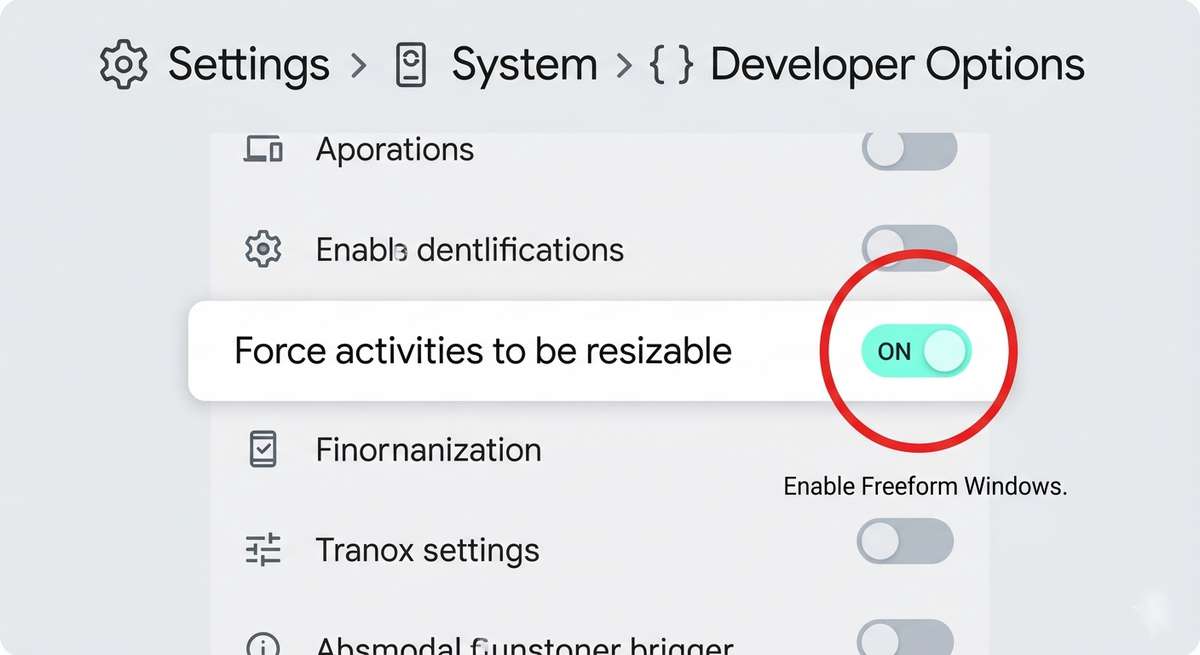
Figure 2: The hidden toggle—”Force activities to be resizable” in Developer Options is the gateway to floating windows.
5. How to Actually Launch a Floating Window (Three Methods)
Once freeform mode is enabled, you have three ways to launch any app as a floating window.
Method 1: The Recent Apps Menu (Easiest)
Swipe up and hold to open your Recent Apps menu (the card view of open apps). Tap the app icon at the top of any app card. A small menu will appear. Look for an option called “Freeform” or “Open in freeform window”. Tap it. The app will immediately detach from fullscreen and become a floating, resizable window.
Method 2: The Long-Press Recent Apps Button (Fastest)
If you use three-button navigation (not gesture navigation), long-press the square Recent Apps button. The current app will instantly convert into a freeform window. This is the fastest method and works perfectly on Samsung and Pixel.
Method 3: Third-Party Launcher (For Power Users)
Install Taskbar (by farOSt) from the Google Play Store. This app adds a Windows-style taskbar to your Android phone. Long-press any app icon in the taskbar and select “Open in freeform window.” This is the most reliable method for Xiaomi users whose memory management kills floating windows.
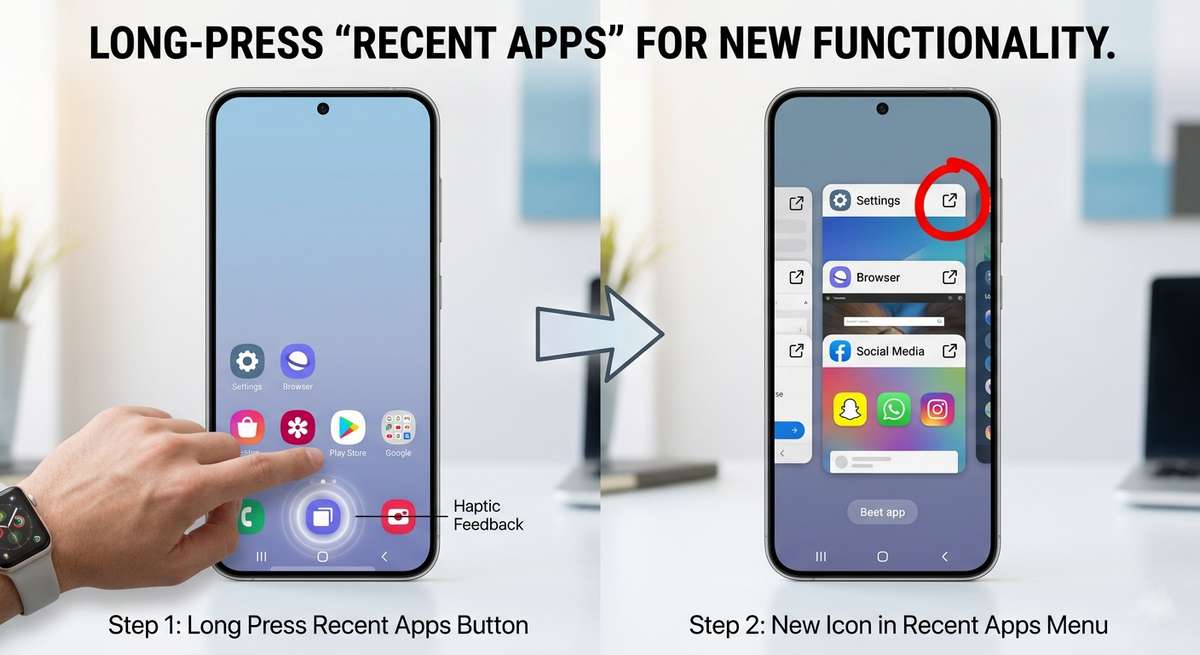
Figure 3: The recent apps menu—tap any app icon to reveal the “Freeform” option.
6. Pro Tips: Resizing, Minimizing, and Managing Multiple Windows
Once your app is floating, here is how to control it:
- Move the window: Drag the title bar (the top strip of the window) anywhere on the screen.
- Resize the window: Drag the bottom-right corner (a small diagonal line icon) inward or outward. Some apps also allow resizing from any edge.
- Close the window: Tap the X button in the top-right corner of the title bar.
- Minimize to bubble: Tap the underscore button (_) in the top-left corner of the title bar. The window will shrink into a small floating bubble. Tap the bubble to restore the window.
- Maximize to fullscreen: Tap the square button in the top-right corner of the title bar (next to the X).
- Open multiple floating windows: Yes. You can have as many as your phone’s RAM can handle. I have successfully run five floating windows simultaneously on a Pixel 8 (8GB RAM).
7. The Apps That Shine in Floating Mode (And One That Doesn’t)
Not every app behaves perfectly in freeform mode. Here is what I have learned after using this feature daily for six months.
Perfect for Floating Windows:
- YouTube / YouTube Music: Keep a video playing in the corner while you scroll Reddit or Twitter. Works flawlessly.
- Google Calculator: The ultimate floating app. Keep it open over a banking app or expense tracker.
- WhatsApp / Telegram / Signal: Reply to messages without leaving your current app. The keyboard pops up correctly inside the floating window.
- Google Keep / Notes: Take notes while watching a lecture or reading an article. The window stays on top.
- Spotify: Control playback without switching away from your navigation app while driving.
- Chrome / Firefox: Look something up while keeping your original app visible.
Problematic Apps (Avoid):
- Games (any): Most full-screen games do not support freeform mode. The game will launch, but touch input often breaks. Avoid.
- Camera apps: The viewfinder often freezes when resized. Stick to fullscreen for photos.
- Netflix / Disney+ (DRM-protected video): These apps will show a black screen in floating mode due to copyright protection. Use PiP instead.
The first time you drag a YouTube video into the corner of your screen and continue scrolling Twitter, you will feel it: a small rush of freedom. This is what smartphones were supposed to be. Not rigid slabs that force you to commit to one app at a time, but flexible tools that adapt to your flow. Google built this feature years ago and then forgot about it. But now you know. Go enable it. Your phone is more powerful than you thought.
📱 More hidden Android powers you didn’t know existed
Keep unlocking: How to Unlock Android’s Hidden “RAM Plus” Feature | How Android’s New “Live Alerts” Are Changing the Game | Reviving Dead Earbuds: A Soldering-Free Guide to Replacing Lithium Batteries in Wireless Earbuds